Setting Up a Meshcore Companion Device
This guide details the steps to set up your Meshcore Companion device.
Prerequisites
- WebFlash App: The WebFlash app for all units is available at: https://flasher.meshcore.co.uk.
- Browser Requirement: This process requires a Chromium-based browser capable of accessing USB/Serial Devices.
Step 1 – Get Companion Ready
- Access the WebFlash App: Go to the WebFlash app link.
- Select Your Device: Search for and select your device from the list.
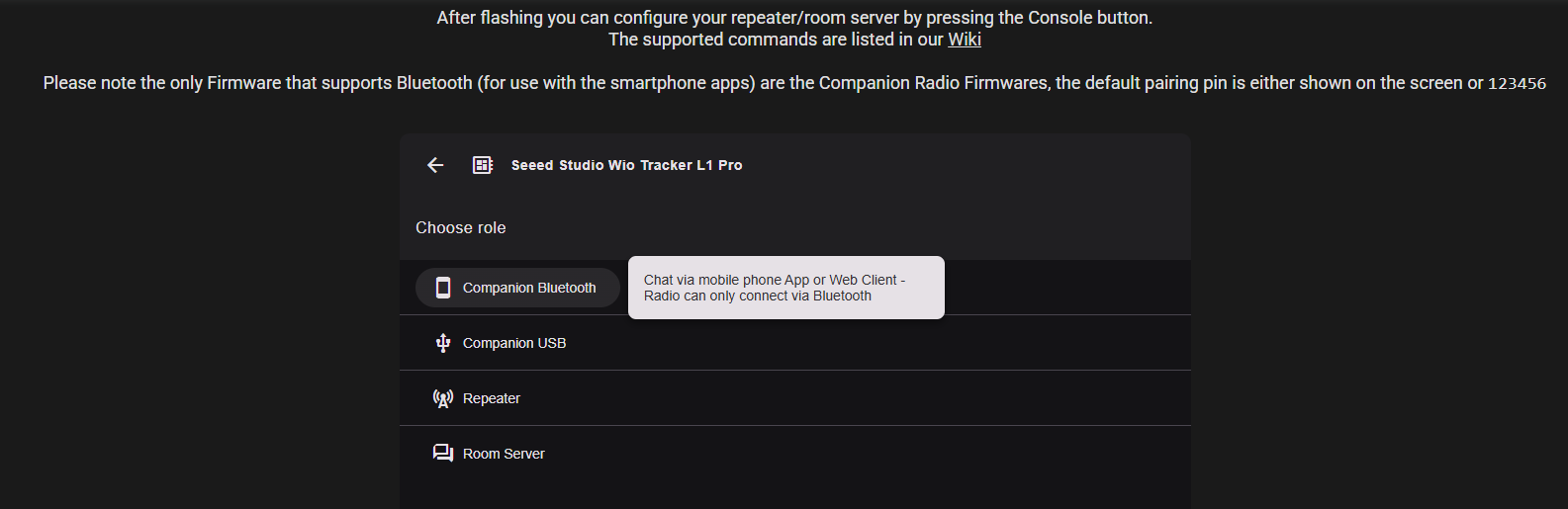
- Choose Role: Click on your device, then select COMPANION BLUETOOTH.
-
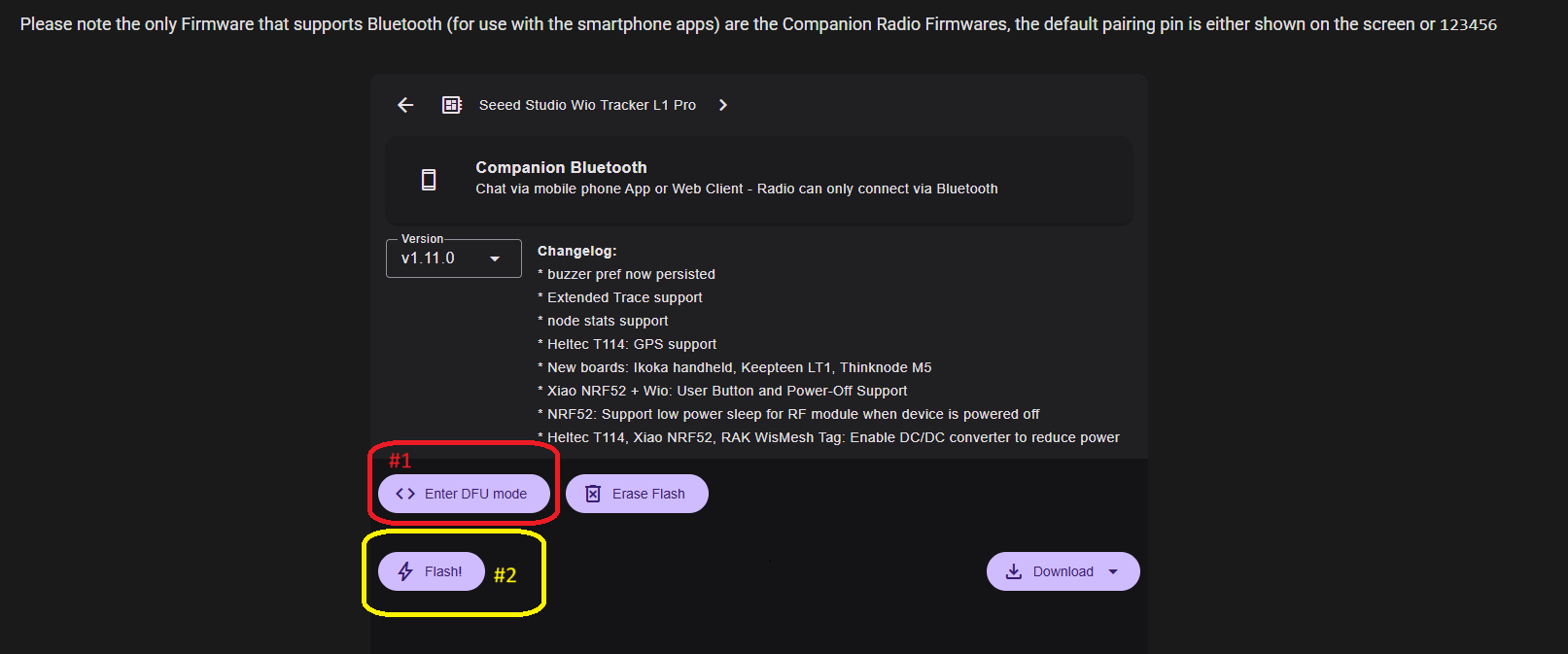
Flash the Firmware:
- Choose the desired firmware.
- Click ENTER DFU MODE (labeled #1). > Troubleshooting DFU Mode: > * If you have issues getting into DFU mode, most devices can be manually entered by double-tapping the reset button. > * For Heltec v3 & v4 devices, hold down the usr button, press the reset button while still holding usr, release reset, then release usr.
- Click ERASE FLASH.
- Click FLASH (labeled #2).
-
Install the Mobile App: Go to your device’s app store, search for Meshcore, and install the App.
Step 2 – Connect to Your Radio
- Open the Meshcore App: After flashing, open the Meshcore app on your phone, tablet, etc..
-
Connect via Bluetooth: Connect to your phone with Bluetooth.
-
Default Bluetooth PIN Information:
- If your radio has a screen: The current PIN will show on the screen of your companion, it is randomly generated each time you restart the device.
- If your radio doesn’t have a display: The default is 123456. Change this PIN first.
- If it is paired already, your previous session will remain linked.
- You can still change to a custom PIN if you desire.
-
Changing the Bluetooth PIN (Optional/Recommended):
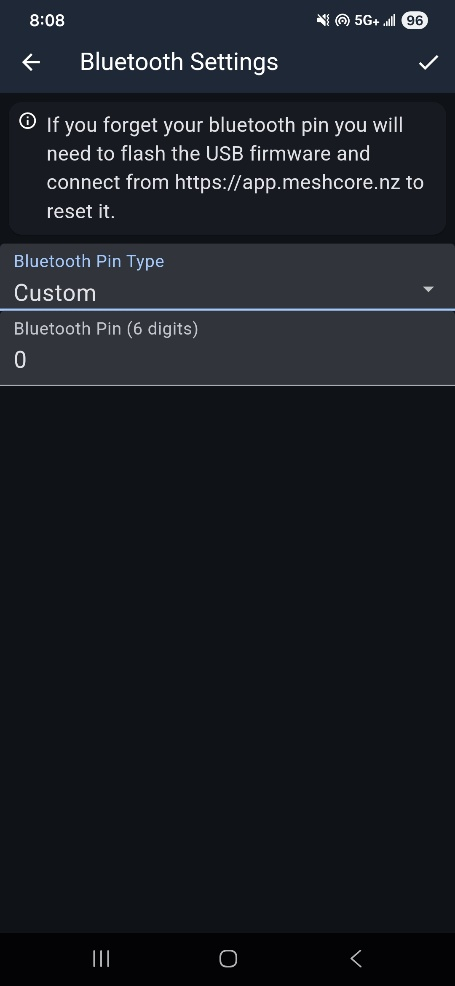
- Once in the app, click the GEAR in the upper right corner, and go to BLUETOOTH SETTINGS.
- Click CUSTOM.
- Enter your desired 6-digit PIN.
- Click the CHECK MARK on the top right to save.
- Reboot the device and reconnect to the app with the new PIN.
- Click on GEAR to get back to settings.
-
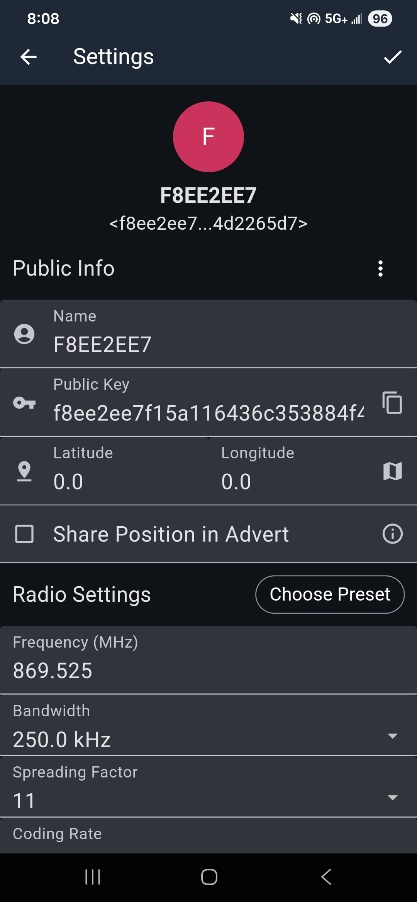
Set Public Information and Radio Settings:
- At the main screen, set your desired node name.
- Set GPS coordinates, or click on the blue map icon to the right and click on location on map. > Note: Location is not required to be set and can be left blank.
- Click CHOOSE PRESETS and choose your region, and enter our custom settings listed here.
-
Finalize and Reboot:
- Once everything is set up, click the CHECK mark in upper right corner.
- Scroll down and REBOOT.
- Reconnect to app; Companion setup should be complete.
-
Add our custom channels:
- On the main screen, click CHANNELS on the bottom bar and add the channels listed in the Channels section.