Setting Up a Meshcore Repeater
This guide details the steps to set up your Meshcore Repeater device.
Step 1 – Prepare the Repeater
- Connect Antenna: Verify that an antenna is connected to your unit before continuing.
- Access the WebFlash App: Go to https://flasher.meshcore.co.uk.
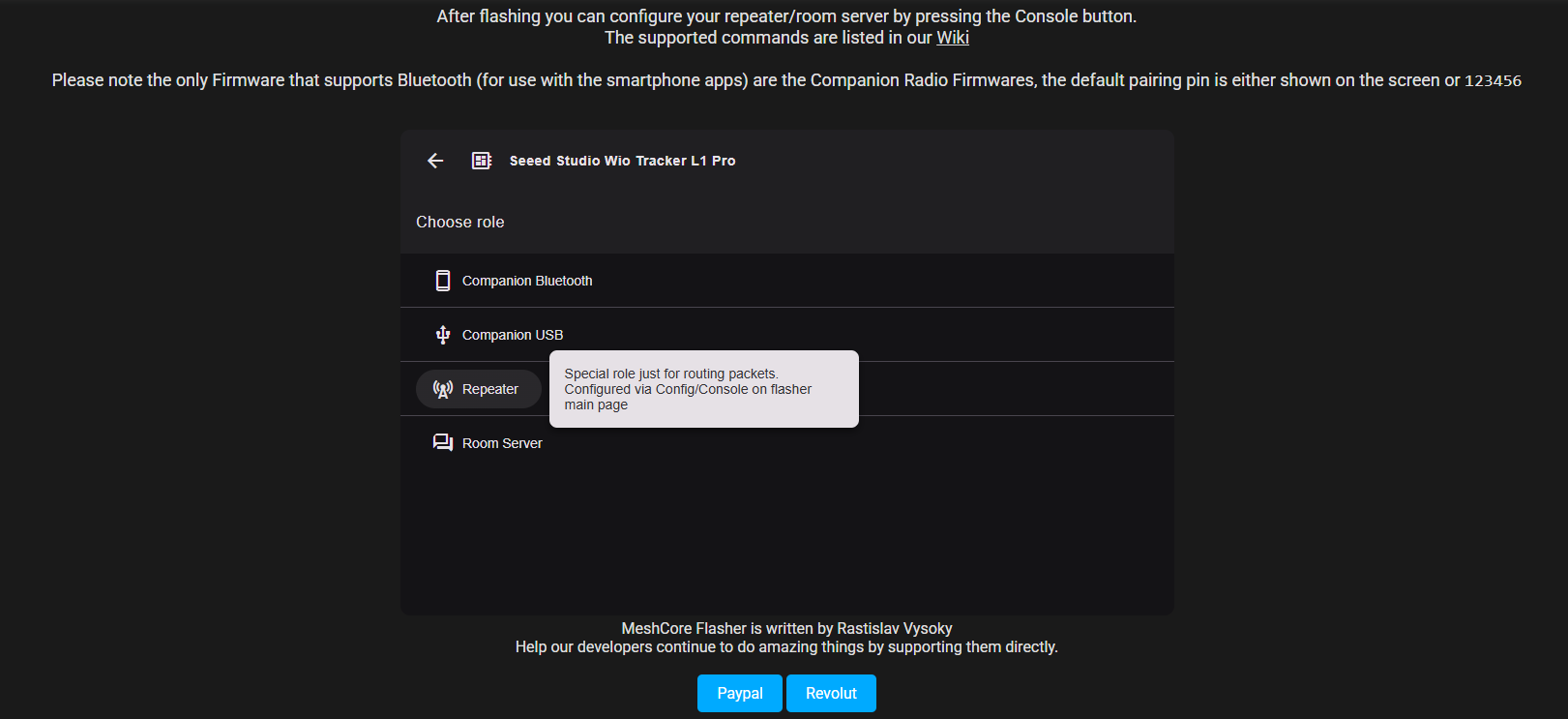
- Choose Role: Choose your device from the list and select REPEATER.
- Connect Radio: Connect the radio via USB.
- Enter DFU Mode:
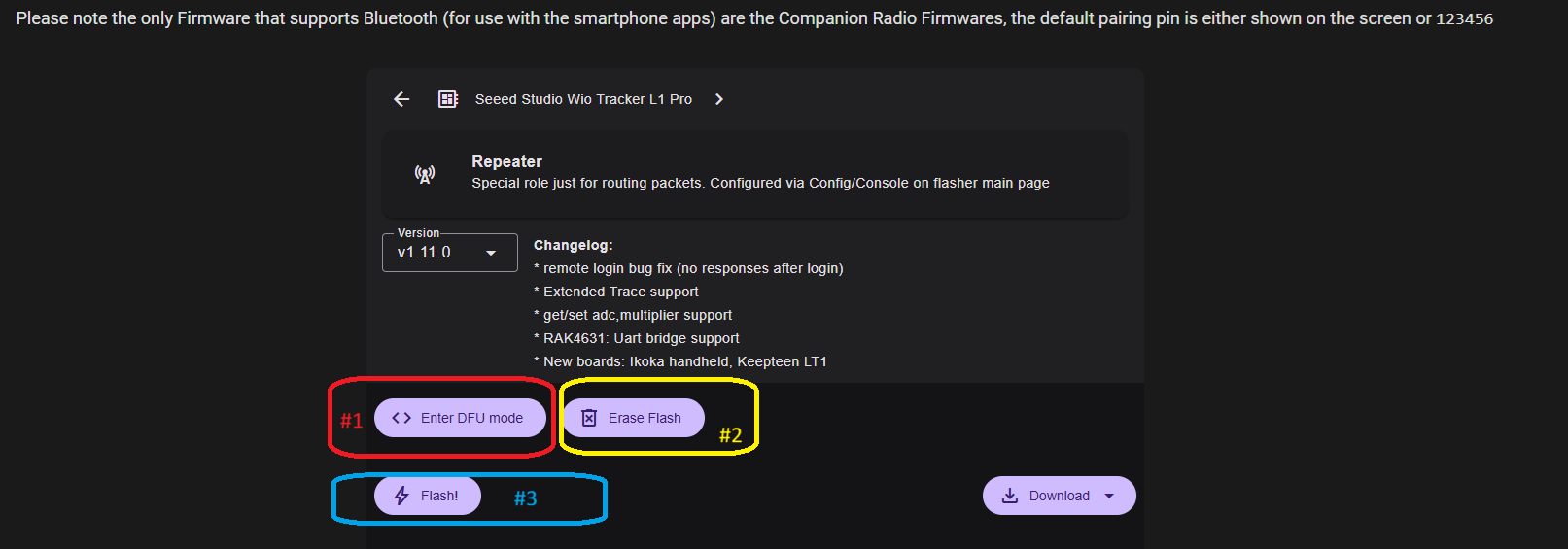
- Select ENTER DFU MODE (labeled #1).
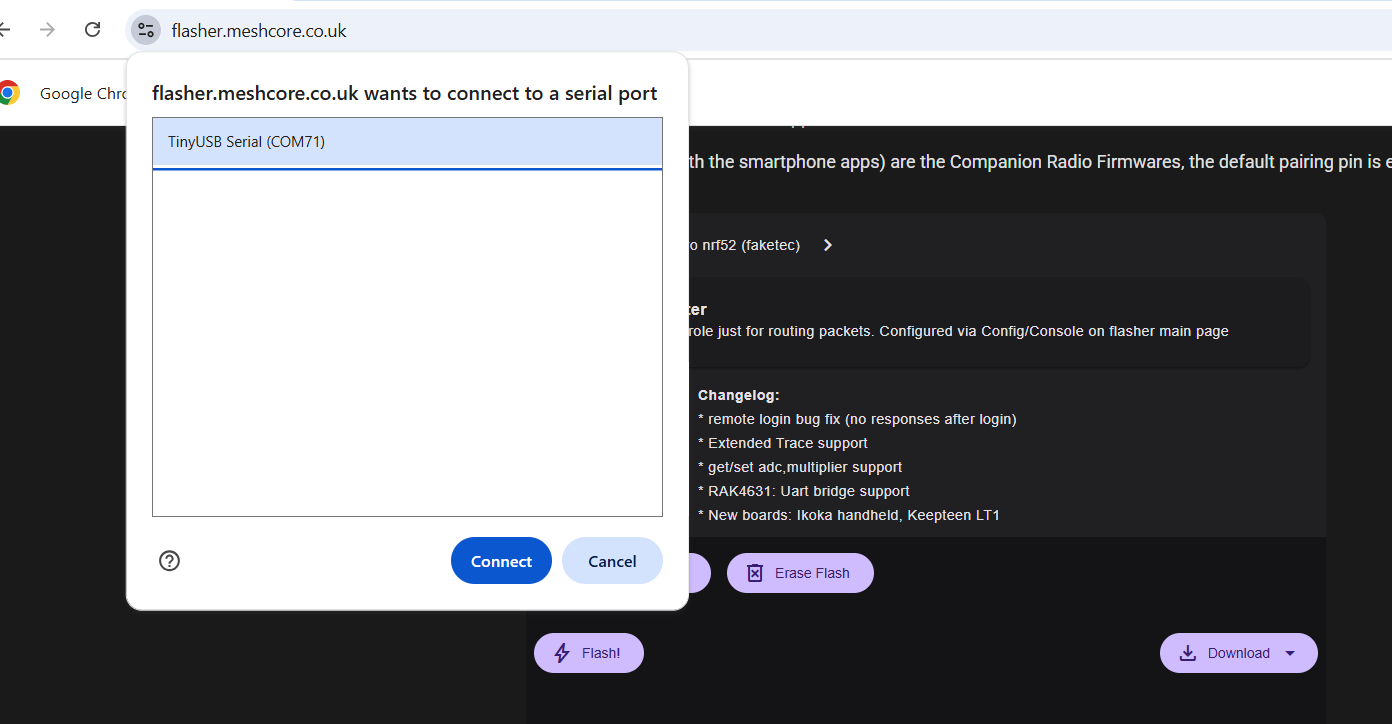
- A pop-up will ask which device; select it from the menu, hit OK.
- Flash the Firmware:
- Once in DFU mode, select ERASE FLASH (labeled #2).
- Once complete, select FLASH (labeled #3).
- The pop-up will appear again; select the radio again.
Step 2 – First Run Configuration
- Configure via USB: After flashing is complete, click CONFIGURE VIA USB.
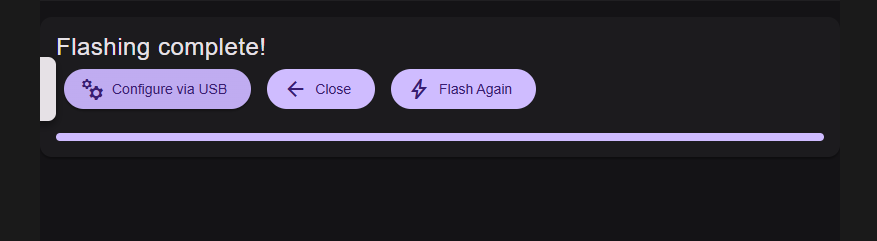
- Connect: Select CONNECT on the pop-up window.

- Select Device: Device Selection will pop up again; you should select your radio.
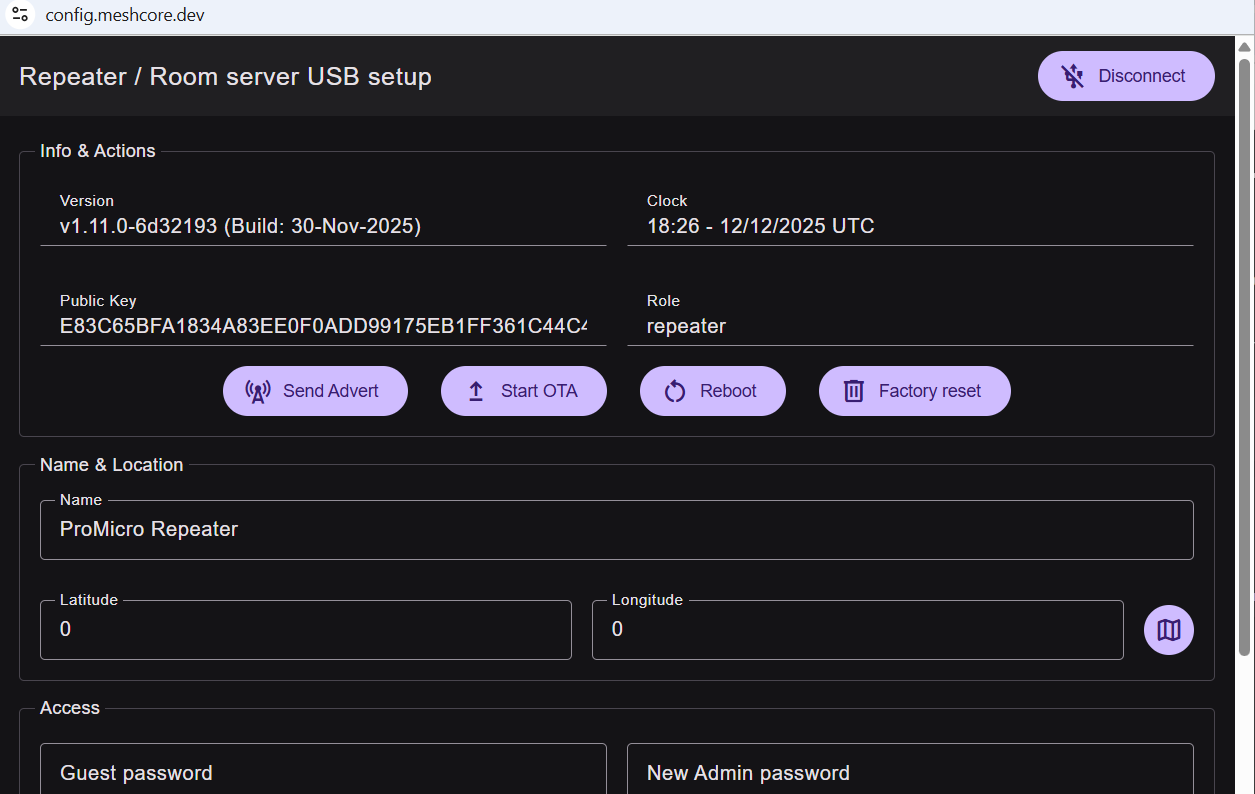
- Admin Section: Once you do so, you will be into the admin section of the radio.
-
Make Settings Match Companion:
- Set the Name and Location (Latitude/Longitude).
- Set a Guest password (to let someone get telemetry).
- Set a New Admin password (for you to login through the phone app and make changes to your repeater).
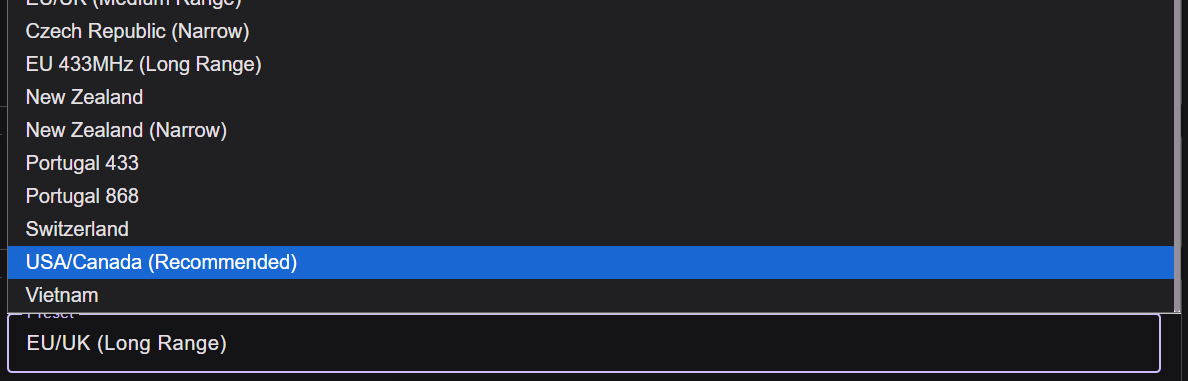
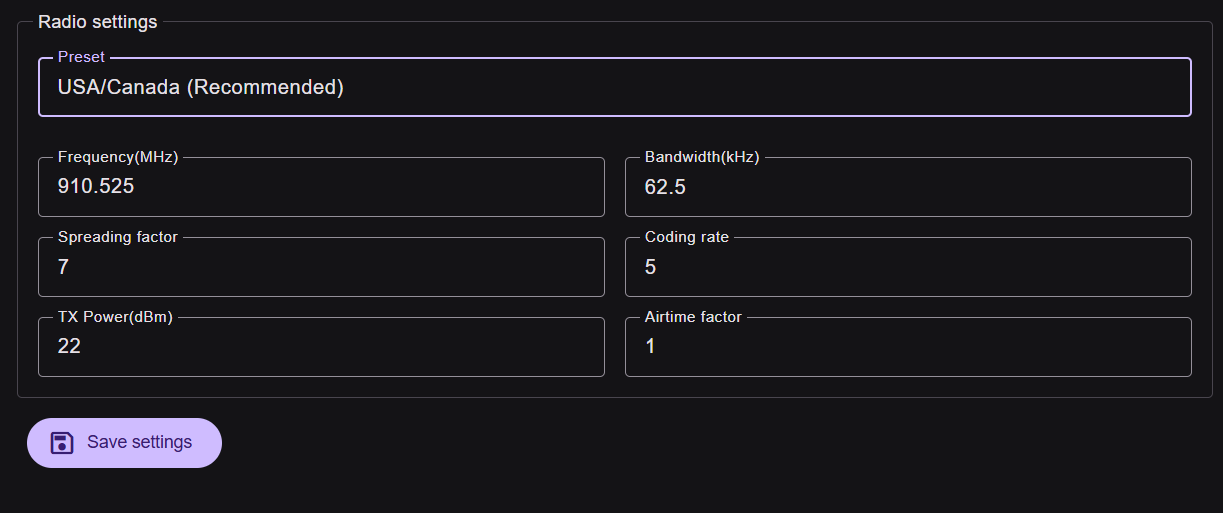
- Radio settings (Preset, Frequency, Bandwidth, etc.) must match your companion. We recommend our frequency settings.
 6. Save and Send Advert:
* SAVE the settings.
* Scroll back up & click SEND ADVERT.
6. Save and Send Advert:
* SAVE the settings.
* Scroll back up & click SEND ADVERT.
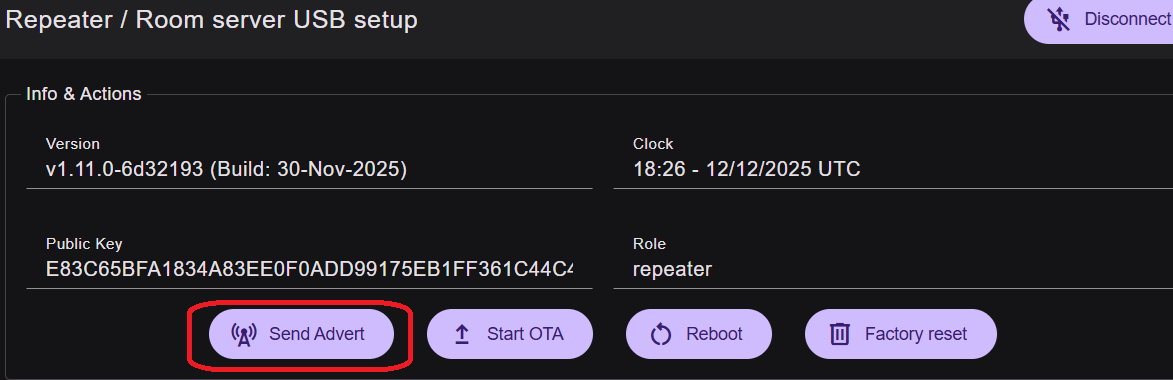 * The repeater should now show up in your contacts on the companion phone app.
Note: The CONFIGURATION WEB APP can be used when the node is connected and any changes need to be made. It can be found here:
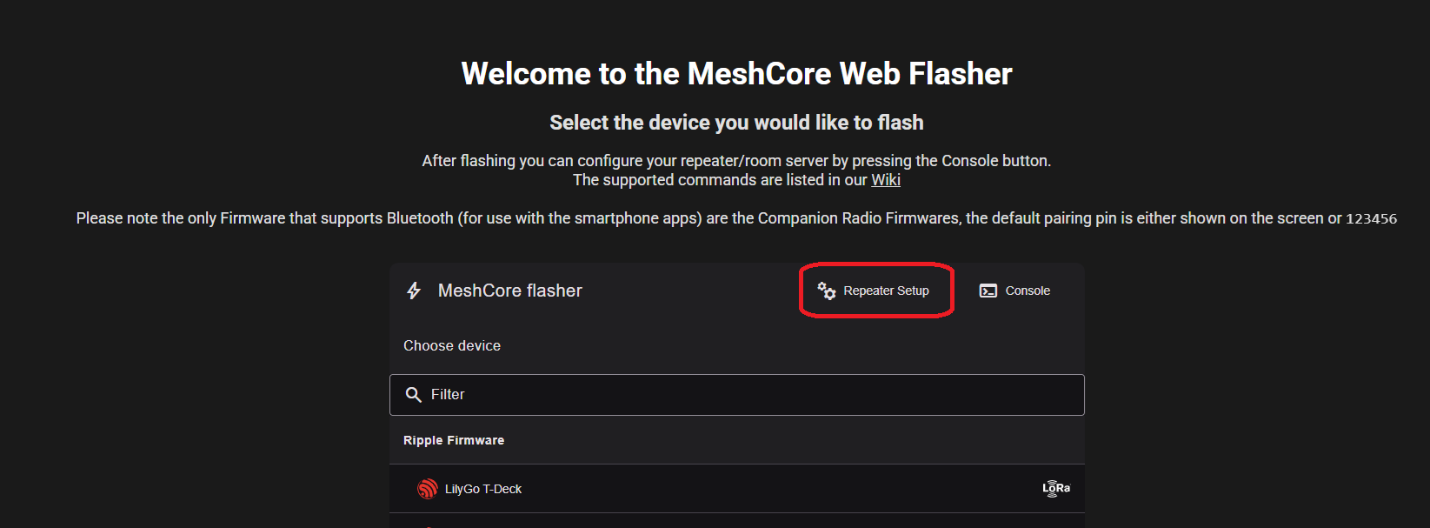
Step 3 – Verify Remote Management
- Manage via Phone App: Now you can manage your repeater through the phone app.
- Access Repeater in App:
- Connect to the Meshcore app.
- In contacts, click on the ANTENNA TOWER icon next to the repeater name.
- If the repeater doesn’t show up: Click TOOLS > DISCOVER NEARBY NODES > REPEATERS, and it will find any within direct reach, you can add them in.
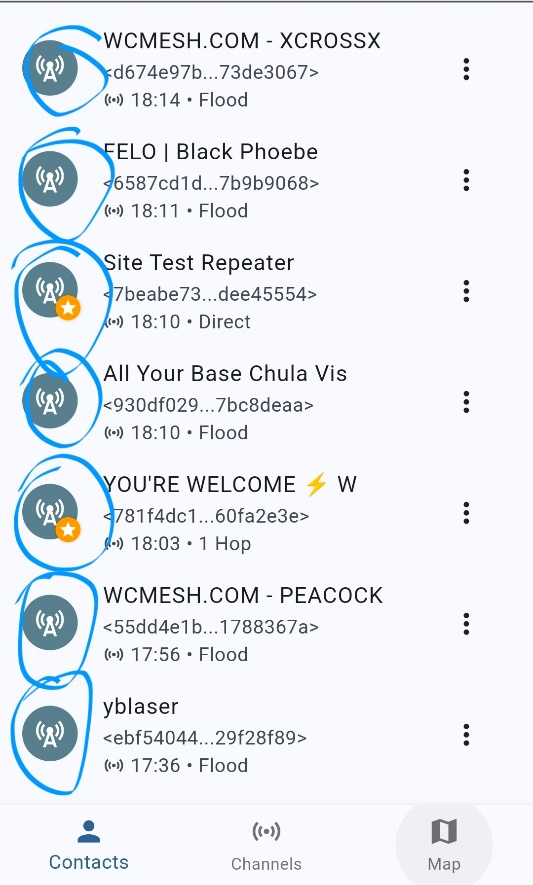
- Login to Repeater Admin:
- Wait for the 10-second countdown (or help support the developers), click CONTINUE.
- Enter the private password you created, LOGIN.
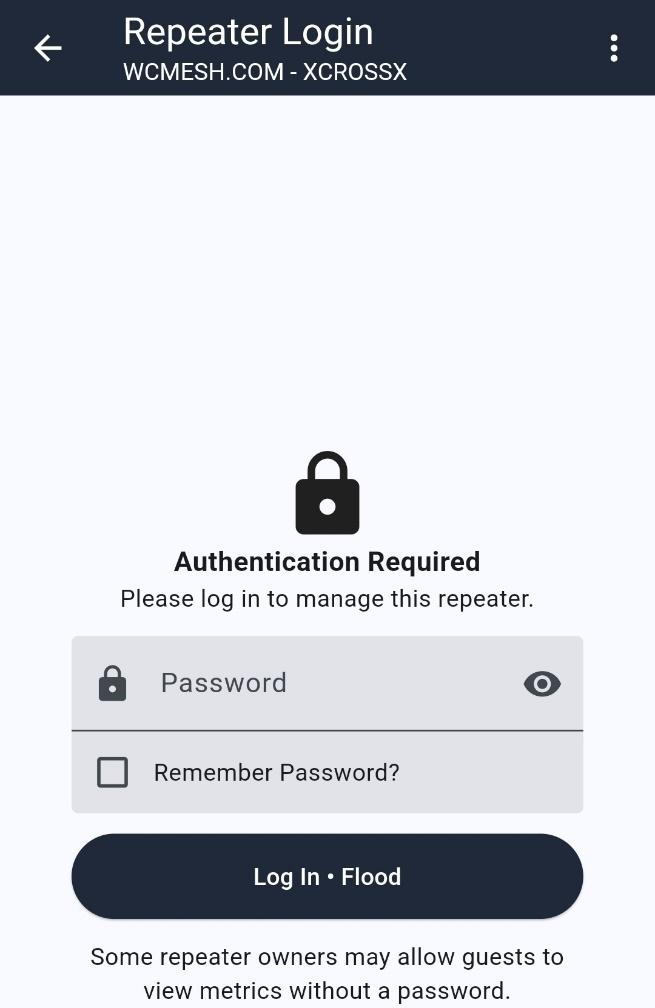
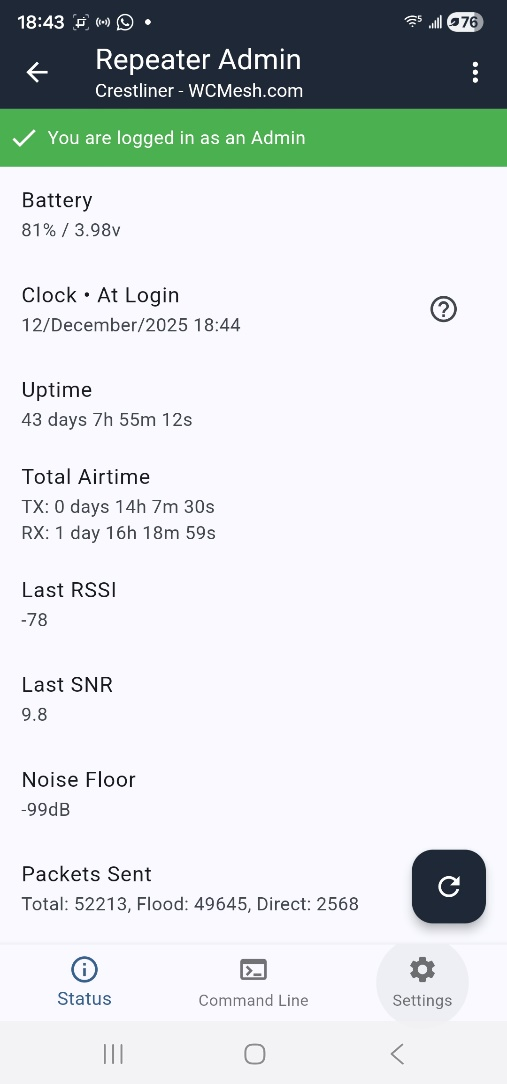
- Status Page: The Status page on loading will require the refresh. In order to minimize network usage, only what is selected to be shown is updated.
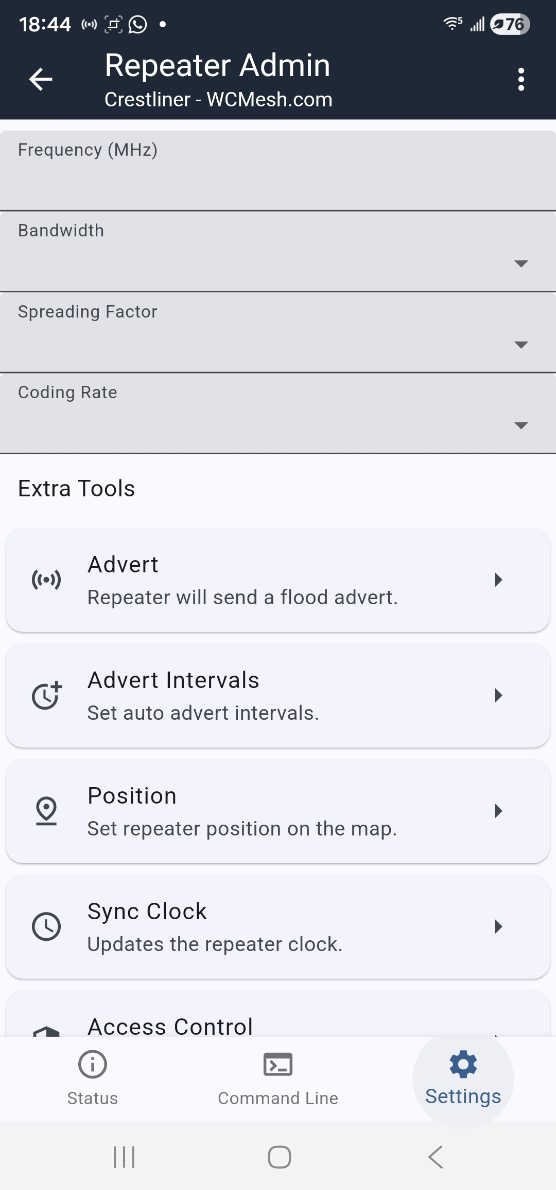
- Send Repeater Advert via App: To send out repeater advert, click SETTINGS > ADVERT.
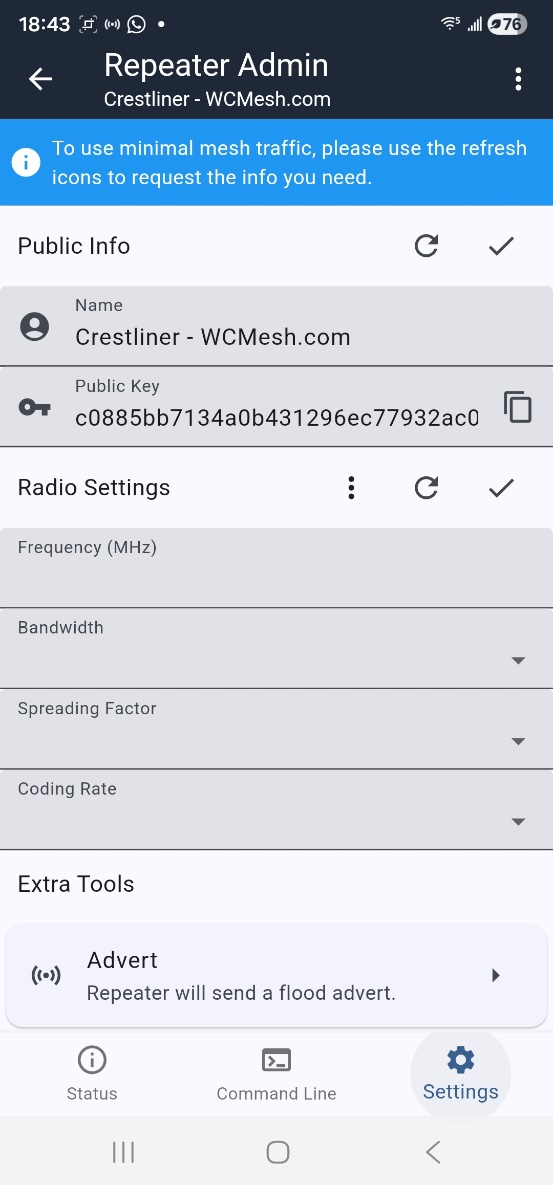
- Sync Clock (If Needed): Some units may require a time-sync after restarts, to do this goto SETTINGS > Sync Clock.